Settings
The settings page has six sections: General, AI & models, Actions, Toolbar & shortcuts, Page tools and About. Changes save as you make them.
Open the settings
- Click the AskAI icon in Chrome's toolbar, then the gear icon.
- Right-click the AskAI icon and choose Options.
- In the side panel, click the gear icon.
- On the AskAI tab at the right edge of a page, choose Settings.
Some places open a section directly: Edit actions in the actions menu opens Actions, and Toolbar settings… in the toolbar's hide menu opens Toolbar & shortcuts.
AskAI keeps its settings in Chrome's storage for the extension. If Chrome sync is on, Chrome copies them to your other computers.
General
Your account, how AskAI looks, and the language it answers in.
Account
- Signed out: Sign in with Google opens the AskAI website. Finish signing in there and this page updates by itself.
- Signed in: your name, email and plan (Free, Standard, Premium or Token pack), and Sign out.
- Daily free tokens: how many of your 10,000 daily tokens are left. They refill every 24 hours. When they're used up, it shows how long until they refill.
- Extra tokens: tokens from a token pack, if you have any. They're used after your daily tokens run out.
- Manage account opens your account page on the website. Get more tokens opens the plans.
Appearance
- Theme: System (follows your computer), Light or Dark. Applies to AskAI's own pages and to the toolbar and cards on websites.
Language
- Answer language: the language that Translate, Explain, Summarize and similar actions answer in. It's what
${lang}means in an action's instruction. Rewrites such as Improve writing keep the language of your text.
Data
- Remove all AskAI data: signs you out and deletes your settings, API keys and custom actions from this browser. You can't undo this. (Side panel chat history is kept; delete it from the side panel's history.)
AI & models
How AskAI reaches AI models and which models it uses. See AI models for the details.
How AskAI connects to AI
- AskAI cloud: uses the free tokens that come with your AskAI account every day.
- Your own API keys: uses your OpenAI, Gemini, DeepSeek or xAI keys. Needs a paid plan; on other plans it's marked Paid plans.
API keys
Shown when Your own API keys is selected. One row per provider (OpenAI, Google Gemini, DeepSeek, xAI Grok), with Set up or Edit and an on/off switch. See API keys.
Models
- Default model: used for actions and questions about selected text. Default: GPT-4o Mini.
- Model for screenshots: used when you ask about part of the screen. Only models that can read images are listed. Screenshot questions need Lifetime Premium or a token pack.
Actions
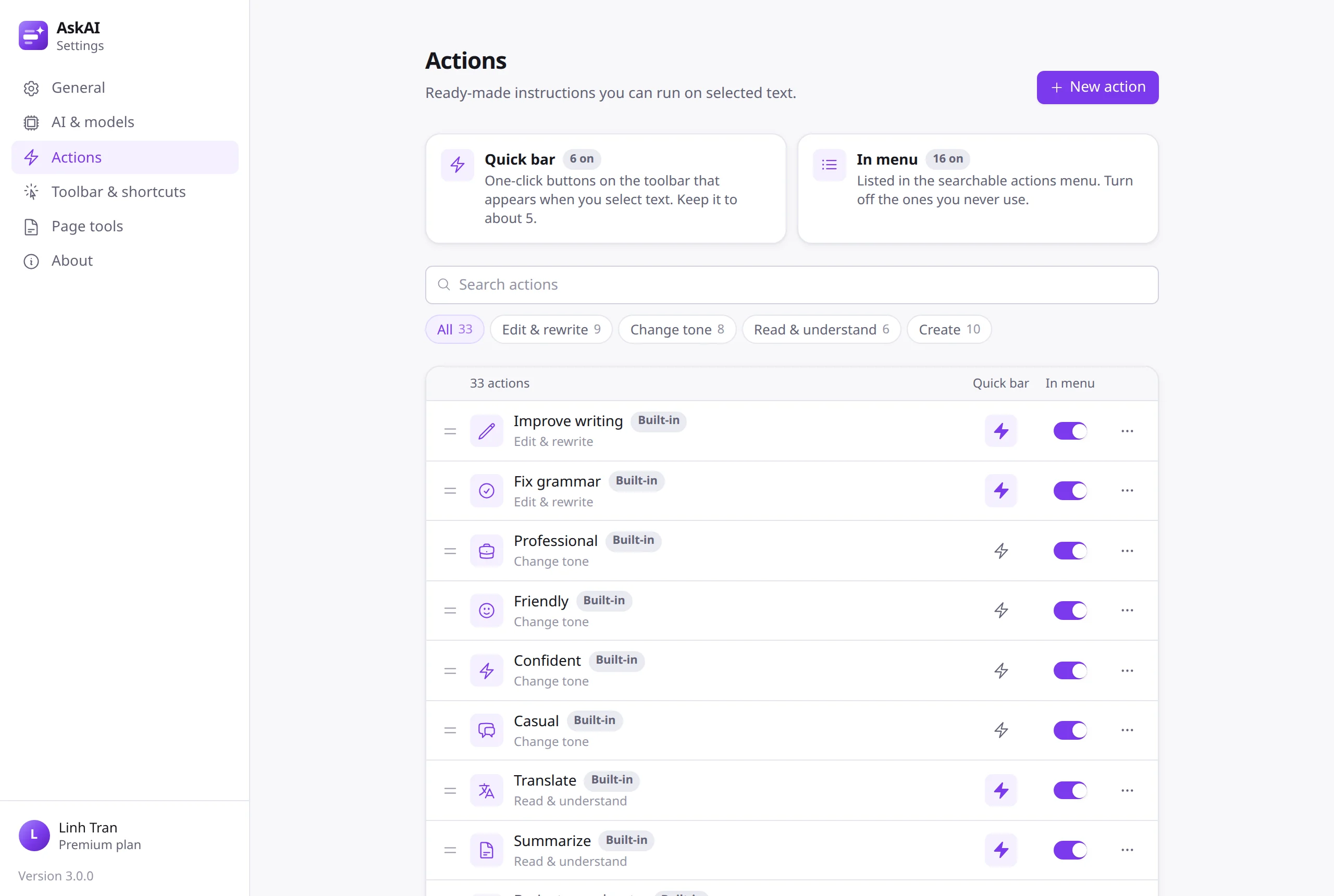
The built-in actions and your own. See Features and Custom actions.
- Quick bar and In menu cards show how many actions are on each.
- Search actions and the filters (All, Edit & rewrite, Change tone, Read & understand, Create, My actions) narrow the list.
- On each row: Quick bar (the lightning bolt) puts the action on the selection toolbar; In menu (the switch) lists it in the actions menu; … has View prompt, Duplicate as custom, Edit, Duplicate, Move up, Move down and Delete, depending on the action.
- Drag rows to change the order.
- New action creates your own action. Free accounts can add 5.
- Reset to defaults puts the built-in actions back to their default order and switches. Your own actions are kept.
Toolbar & shortcuts
When the AskAI toolbar shows up on pages, and the keys that open it.
Selection toolbar
- Show AskAI when I select text: the main switch for the toolbar on every site. When it's off, the Alt+J shortcut still works.
- When to show it:
- On every selection: as soon as you select text. This is the default.
- While holding a key: only if you hold a key while you select. Choose the Key to hold: Ctrl, Alt or Shift.
- Only with the shortcut: select text, then press the Open AskAI shortcut (Alt+J by default).
- Toolbar style:
- Compact: a small AskAI button that opens into actions when you point at it. This is the default.
- Full: your quick bar actions are shown right away.
Page tab
- AskAI tab on the edge of pages: a small tab on the right edge of websites for opening the page tools without selecting text. On by default.
Hidden on these sites
The toolbar and the page tab stay off on the sites in this list. Type an address such as example.com and click Add, or click × next to a site to show AskAI there again. Sites you hide from the toolbar's × menu or the popup's switch appear here too.
Keyboard shortcuts
| Shortcut | Default | How to change it |
|---|---|---|
| Open AskAI on selected text | Alt+J (Option+J on a Mac) | Chrome manages it. Click Change to open chrome://extensions/shortcuts. |
| Ask about a screenshot | Ctrl+Shift+S | Click the shortcut, then press the new keys. |
| Translate this page | Ctrl+Shift+F | Click the shortcut, then press the new keys. |
New shortcuts must include Ctrl, Alt, Shift or ⌘. If the screenshot and translate shortcuts use the same keys, the page warns you. These two shortcuts don't work while you're typing in a text box. Ask about a screenshot is marked Paid plans if your plan doesn't include it.
Page tools
How whole-page translation, page summaries and reading aloud work. See Page tools.
Translate page
- Translate into: the language whole pages are translated into.
- Show: Both languages keeps the original text and adds the translation under it. Translation only replaces it.
- Mark translated text: None, Underline or Highlight.
- A Preview shows how translated text will look.
Summarize page
- Summary language: the language summaries are written in.
- Model: the model that writes summaries. Default: GPT-4o Mini. With your own keys, pick a model whose provider you've connected.
- Longest summary: a limit in tokens (about ¾ of a word each). Leave it empty for no limit.
- Instruction: what AskAI asks the AI to do.
${input}is the page text and${lang}is the summary language. Changes save shortly after you stop typing. Reset to default brings back the original instruction.
Read aloud
- Voice: the OpenAI voice that reads answers aloud, such as Alloy, Coral or Nova. It's used when you choose Your own API keys and add an OpenAI key. Otherwise your browser's built-in voice reads answers.
Read aloud is part of Lifetime Premium and token packs. On other plans this section is marked Paid plans.
About
- The version of AskAI you have installed.
- Links: the website, these help pages, Rate AskAI on the Chrome Web Store, and the privacy policy.
- Replay the welcome tour: Open tour shows the introduction you saw after installing.