Features
AskAI works on the text you select on any web page. This page lists the built-in actions and the ways to control where AskAI shows up. Other features have their own pages:
- Page tools: summarize a page, translate a page, ask about part of the screen.
- Side panel chat: a chat with AI next to the page.
- Custom actions: your own instructions.
- AI models: AskAI cloud, your own keys and the available models.
Built-in actions
An action is a ready-made instruction that AskAI sends to the AI with the text you select. AskAI has 33 built-in actions in four groups.
- An action that's on is listed in the actions menu (Alt+J) and in the side panel's
/list. - An action in the quick bar is also a one-click button on the toolbar that appears when you select text.
Rewrites (Edit & rewrite and Change tone) answer in the language of your text. Translate, Explain, Summarize and most other actions answer in your answer language, which you set in Settings → General.
The tables show the defaults for a new install. You change them in Settings → Actions. If you used an earlier version of AskAI, your earlier choices are kept.
Edit & rewrite
| Action | What it does | Default |
|---|---|---|
| Improve writing | Rewrites the text to be clearer and more concise, with the same meaning. Shown as Improve in the quick bar. | Quick bar |
| Fix grammar | Fixes grammar and spelling mistakes. | Quick bar |
| Make shorter | Cuts the text to about half its length. Shown as Shorter in the quick bar. | Quick bar |
| Make longer | Makes the text about twice as long without adding new ideas. | On |
| Simplify language | Makes the text clearer and easier to understand. | On |
| Continue writing | Continues the text in the same voice and style. | On |
| Fix spelling & grammar | Corrects spelling, syntax and grammar only, and changes nothing else. | Off |
| Add details | Adds details to make the text more convincing. | Off |
| Add statistics | Adds statistics to make the text more convincing. Check any numbers it adds. | Off |
Change tone
| Action | What it does | Default |
|---|---|---|
| Professional | A polished, courteous tone for work, without jargon or filler. | On |
| Friendly | A warm, approachable tone. | On |
| Confident | Direct and to the point, without hedging like "I think" or "sorry to bother". | On |
| Casual | A relaxed tone, like a quick chat message. | On |
| More persuasive | Stronger wording that ends with a clear call to action. | On |
| More apologetic | A softer, more apologetic tone that takes responsibility where it fits. | Off |
| More engaging | Livelier wording and more varied sentences. | Off |
| Add humor | Adds light humor and keeps the meaning. | Off |
In a text box, the Tone button on the quick bar opens the actions menu with these actions at the top.
Read & understand
| Action | What it does | Default |
|---|---|---|
| Translate | Translates the text into your answer language. | Quick bar |
| Summarize | Sums up the text in one short paragraph. | Quick bar |
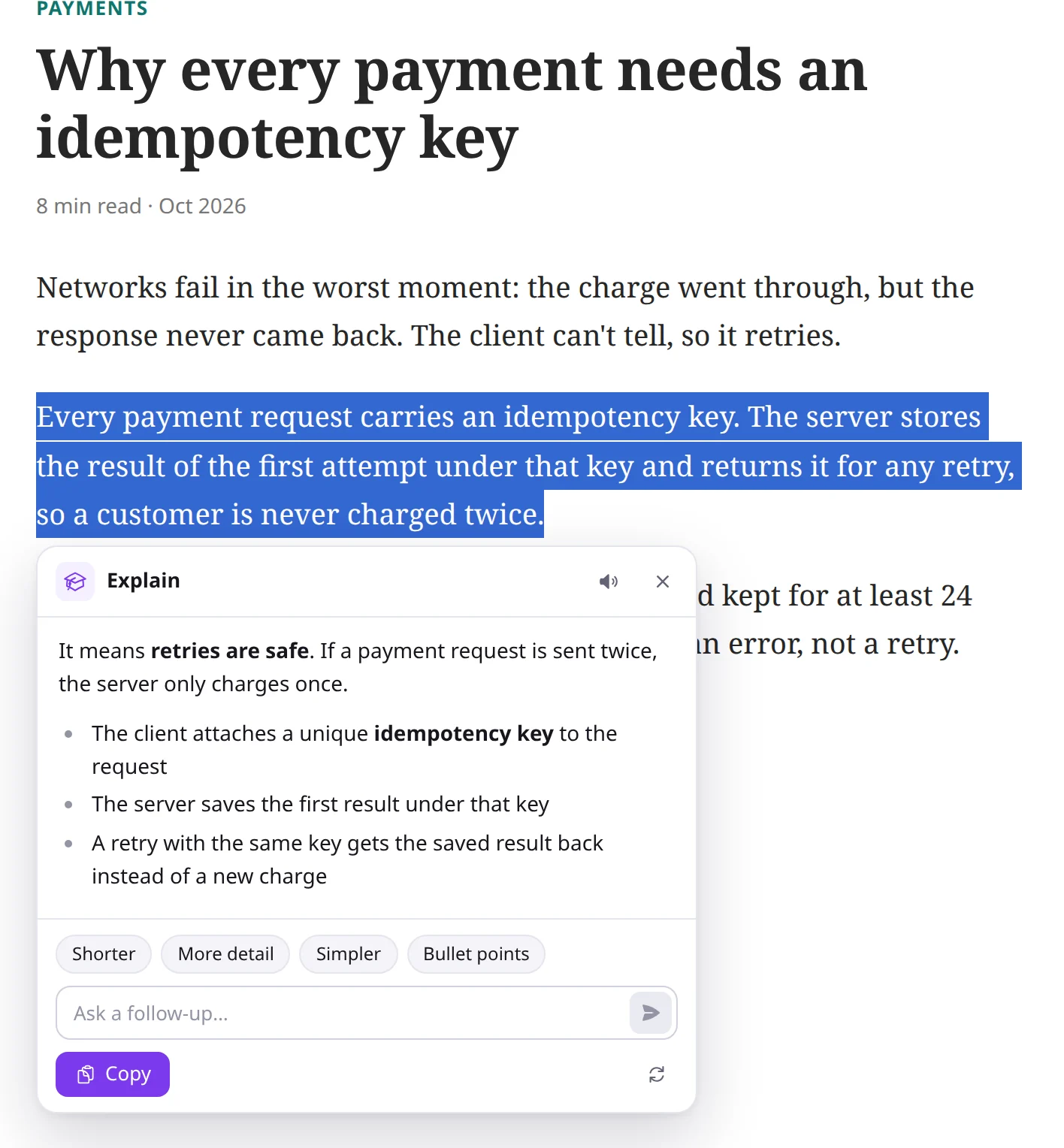
| Explain | Explains the text clearly and briefly. | Quick bar |
| Answer this question | Answers the question you selected, in simple words. | On |
| Find action items | Lists, as bullet points, the to-dos in the text that are yours to do. | On |
| Explain codes | Explains what a piece of code does. | Off |
On page text (outside a text box), the quick bar leaves out Edit & rewrite and Change tone actions, so it shows Translate, Summarize and Explain.
Create
These actions take a topic, keywords or notes that you select and write something new in your answer language. All of them are off by default.
| Action | What it writes |
|---|---|
| Brainstorm about… | Ten ideas based on the keywords or topic. |
| Blog post… | A blog post with a title, sections and a conclusion, in Markdown. |
| Outline… | An outline with titles, chapters and subsections, in Markdown. |
| Paragraph about… | A longer paragraph built from the text. |
| Social media post… | A short caption for a post about the topic. |
| Sales email… | A sales email with a subject line, the product's benefits and a call to action. |
| Meeting agenda… | A meeting agenda with an objective, agenda items and blanks for time, place and attendees. |
| To-do list… | A checklist of steps from your notes. |
| Creative story | A story based on your idea. |
| Press release | A press release with a headline, lead, body, quotes and company profile. |
To turn one on, find it in Settings → Actions and switch on In menu.
Ask in your own words
You don't need an action for everything. Open the actions menu, type what you want ("turn this into a numbered list", "is this sentence too formal?") and press Enter. If your request asks for a change, the answer is just the changed text, so Replace works. If it's a question, you get an answer. See the Quick start.
Control where AskAI appears
Hide the toolbar
In compact style, point at the AskAI button so the quick bar opens. Then click × at its right end and choose:
- Hide for now: hidden on this page until you reload it.
- Don't show on the current site: the toolbar and the page tab stay off on that site.
- Turn off the selection toolbar: off on every site. The Alt+J shortcut still works.
- Toolbar settings…: opens Settings → Toolbar & shortcuts.
Each choice shows a short message with Undo.
You can also use the switch Show toolbar on selection in the AskAI popup for the current site. Settings → Toolbar & shortcuts → Hidden on these sites lists every site where AskAI is hidden. Remove a site there to show AskAI on it again, or add one by typing its address, such as example.com.
Choose when the toolbar appears
In Settings → Toolbar & shortcuts → When to show it:
- On every selection (the default): the toolbar appears as soon as you select text.
- While holding a key: the toolbar appears only if you hold a key while you select. Pick Ctrl, Alt or Shift under Key to hold. On a Mac, Ctrl also accepts ⌘.
- Only with the shortcut: the toolbar never appears on its own. Select text, then press Alt+J.
Toolbar style
In Settings → Toolbar & shortcuts → Toolbar style:
- Compact (the default): a small AskAI button that opens into the quick bar when you point at it.
- Full: the quick bar shows right away.
The page tab
A small AskAI tab sits on the right edge of web pages. Point at it for the page tools: Open chat, Summarize page, Translate page, Ask about screen and Settings. To remove it, choose Hide this tab there, or turn off AskAI tab on the edge of pages in Settings → Toolbar & shortcuts. Turn that setting back on to bring the tab back.
Light and dark theme
AskAI follows your computer's light or dark mode by default. To choose one, go to Settings → General → Appearance → Theme and pick System, Light or Dark. The theme applies to the settings, the popup, the side panel, and the toolbar and cards on websites.