Page tools
Page tools work on the whole page instead of a selection: summarize it, translate it, or ask about part of what's on screen.
Where to find them
- The AskAI tab on the right edge of the page. Point at it to see Open chat, Summarize page, Translate page, Ask about screen and Settings.
- The AskAI popup (click the AskAI icon in Chrome's toolbar): Open chat, Summarize, Translate page and Ask about screen.
- The actions menu (Alt+J), under This page.
- Keyboard shortcuts: Ctrl+Shift+F translates the page and Ctrl+Shift+S starts a question about the screen. They work when you aren't typing in a text box. You can change them in Settings → Toolbar & shortcuts.
Summarize a page
Choose Summarize page (or Summarize in the popup). AskAI opens the side panel and writes a summary of the page there. When it's done, you can ask follow-up questions in the same chat.
- AskAI picks out the main text of the page, like an article's body. Long pages are cut to their first 10,000 characters.
- With the default instruction, the summary starts with a one-sentence overview and then lists the key points.
- You need to be signed in, or to use your own API keys.
You can change how summaries work in Settings → Page tools → Summarize page: the summary language, the model, the longest summary and the instruction AskAI sends. See Settings.
Translate a page
Choose Translate page or press Ctrl+Shift+F. AskAI translates the text on the page in place. When it's done, a message says Translated to your language and offers Show original.
To go back to the original later, choose Show original in the page tab, the popup or the menu, or press the shortcut again.
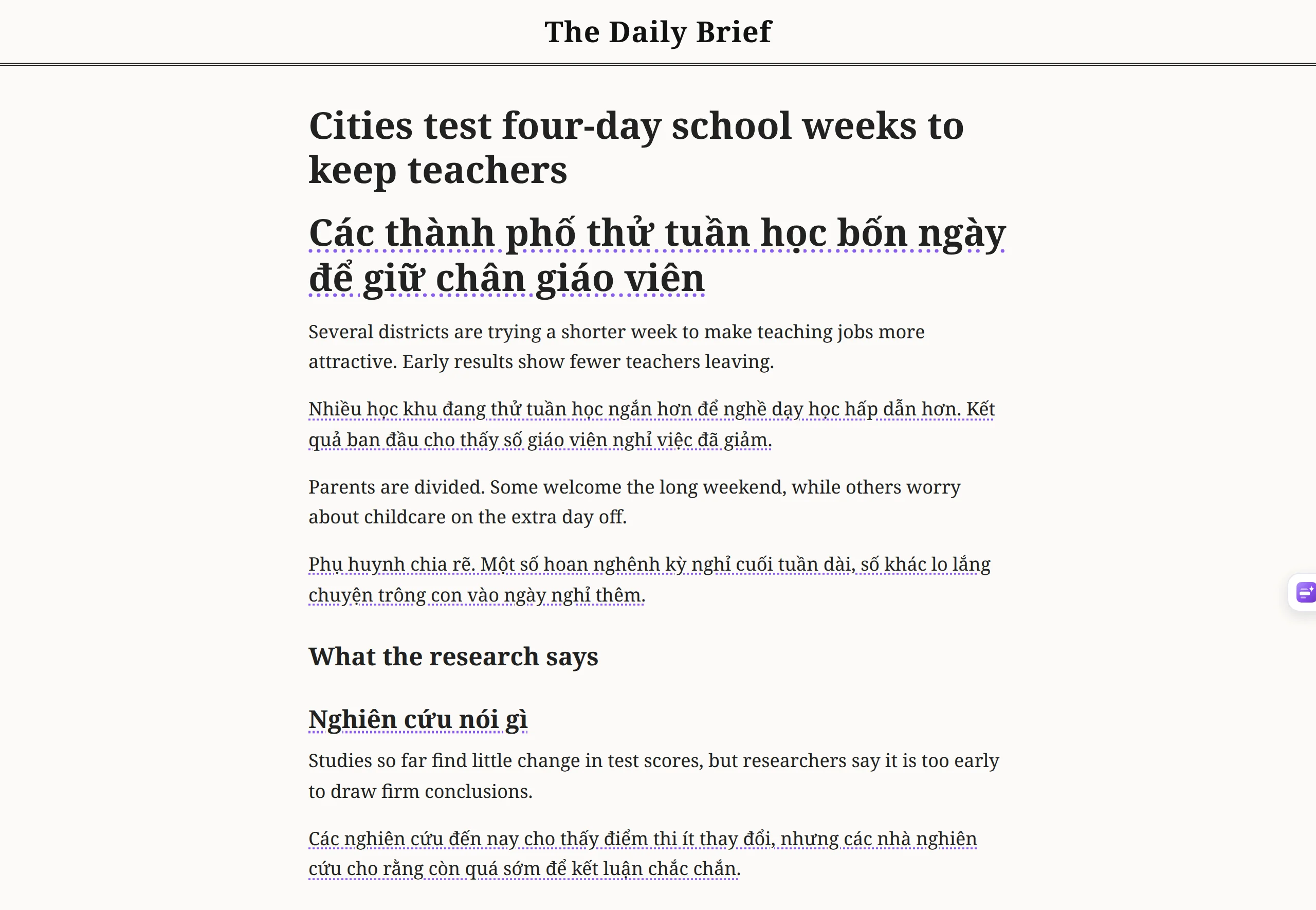
Set it up in Settings → Page tools → Translate page:
- Translate into: the language to translate into. There are more than 30.
- Show: Both languages puts each translation under the original text. Translation only replaces the original.
- Mark translated text: None, Underline (a dotted underline) or Highlight (a tinted background). A preview shows the result.
Good to know:
- AskAI translates up to 100 pieces of visible text per page, starting with paragraphs and headings. On very long pages, text further down may stay in the original language.
- It doesn't change text in text boxes.
- Page translation always goes through AskAI cloud. You need to be signed in, and it uses your AskAI tokens, even if you use your own API keys for everything else.
- This is separate from the Translate action, which translates only the text you select, into your answer language.
Ask about part of the screen
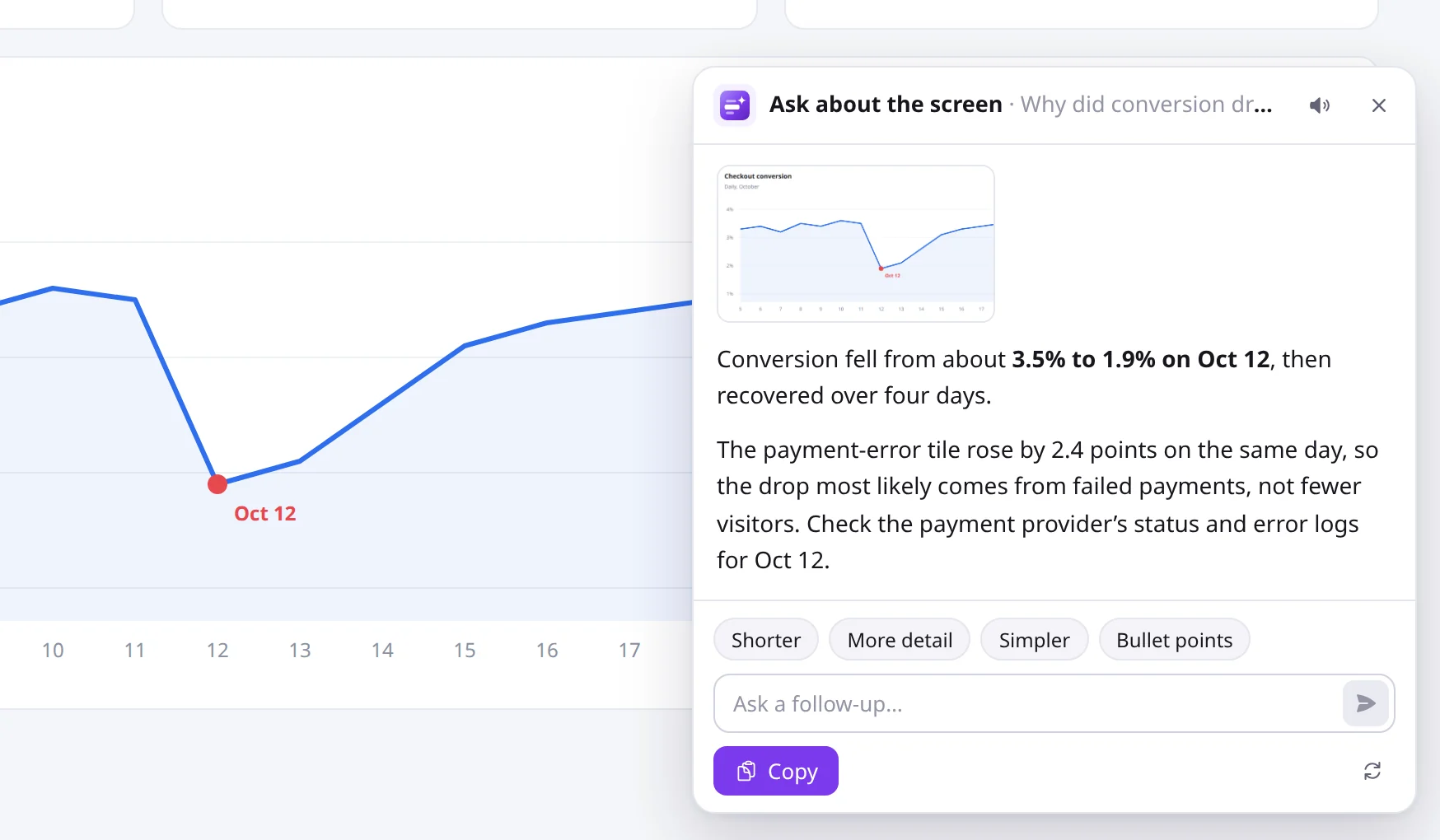
Use this for things you can't select as text: a chart, an image, an error dialog.
- Choose Ask about screen (in the menu it's Ask about part of the screen), or press Ctrl+Shift+S.
- The page dims. Drag over the area you want to ask about. Press Esc to cancel.
- A card shows the area you picked. Type your question in What do you want to know about it?, or pick a suggestion: Describe what this shows, Extract the text, Explain this or What should I do here?
- The answer appears in the card, with the same refinement chips and follow-up box as other results.
Good to know:
- AskAI uses your Model for screenshots from Settings → AI & models. Only models that can read images are offered there.
- Asking about the screen is part of Lifetime Premium and token packs. On other plans, AskAI shows a card that explains this and links to the plans.
- In the side panel, the screenshot button under the message box does the same, but attaches the area to your chat message. See Side panel chat.