Quick start
This page covers the three parts of AskAI you'll use most: the selection toolbar, the actions menu and the result card. Before you start, sign in (see Installation) or add your own API key.
1. Select text
Select text on any page. A small AskAI button appears at the end of your selection. Point at it and it opens into the quick bar, a row of one-click actions.
The quick bar changes with what you select:
- In a text box, such as an email draft, a chat message or a comment: Improve, Fix grammar, Shorter and Translate, plus a Tone button.
- On page text, such as an article or documentation: Translate, Summarize and Explain.

Tone opens the actions menu with the tone actions at the top: Professional, Friendly, Confident, Casual and More persuasive.
These are the defaults. You choose which actions are in the quick bar in Settings → Actions, and it shows up to four that fit what you selected. If you'd like the quick bar to show right away, without pointing at the button, set Toolbar style to Full in Settings → Toolbar & shortcuts.
AskAI works with up to 12,000 characters of selected text.
2. Pick an action or type a request
Click an action in the quick bar to run it. For everything else, open the actions menu: click the AskAI button, or press Alt+J (Option+J on a Mac).
The menu has one box at the top. In it you can:
- Search the actions. Every action that's turned on is listed, grouped by what it does: Edit & rewrite, Change tone, Read & understand, Create and My actions.
- Type a request in your own words, such as "make it sound less formal" or "what does this clause mean?". The first item becomes Ask AI: "your request", and Enter runs it.
Below the actions, under This page, the menu also lists the page tools: ask about part of the screen, summarize this page, translate this page and open the AskAI chat.
Use ↑ and ↓ to move, Enter to run and Esc to close. Edit actions at the bottom opens the Actions settings.
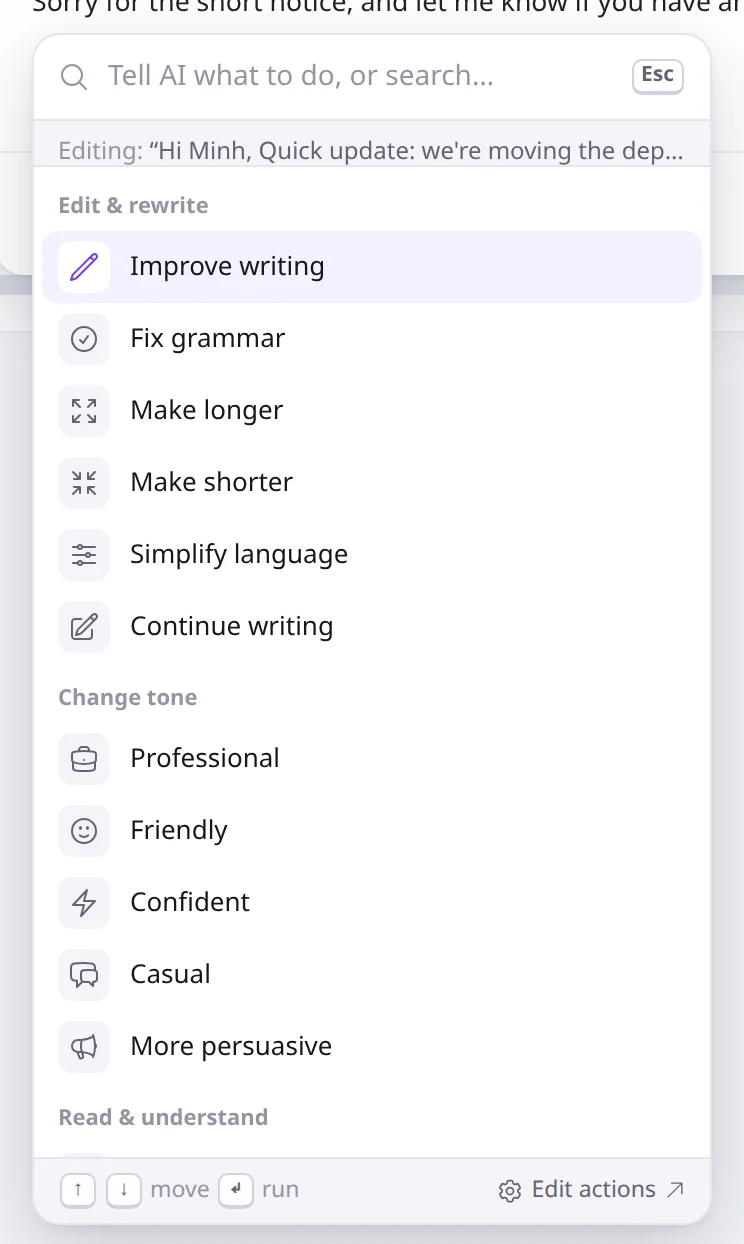
You can press Alt+J with nothing selected, too. The menu then opens at the top of the page and you can ask anything.
Chrome manages this shortcut. To change it, open chrome://extensions/shortcuts, or go to Settings → Toolbar & shortcuts and click Change.
3. Use the result
The answer appears in a card next to your text and fills in as it's written. While it's writing, Stop ends it early.
When it's done, the card offers:
| Control | What it does |
|---|---|
| Replace | Puts the answer in place of the text you selected. Only in text boxes. Shortcut: Ctrl+Enter (⌘+Enter on a Mac). |
| Insert below | Adds the answer below your text and keeps the original. Only in text boxes. |
| Copy | Copies the answer. On page text, Copy is the main button and Ctrl+Enter copies. |
| Try again (circular arrow) | Asks again for a different answer. |
| Refinement chips | Adjust the answer in one click. Rewrites get Shorter, Longer, More formal, More casual and Simpler. Answers get Shorter, More detail, Simpler and Bullet points. |
| Follow-up box | Type a change ("Describe a change…") or a follow-up question ("Ask a follow-up…"). |
| Versions | Each retry, refinement or follow-up adds a version. Use the arrows next to the counter (for example 2/3) to go back to an earlier one. Replace and Copy use the version you're looking at. |
| Read aloud (speaker icon) | Reads the answer aloud. Part of Lifetime Premium and token packs. |
To close the card, click × or press Esc. To move it out of the way, drag it by its title bar.
Undo
After Replace or Insert below, a small message says Replaced or Inserted below and offers Undo. Click it to bring your original text back. In plain text boxes, Ctrl+Z (⌘+Z) works as well.
If a site doesn't let AskAI write into its text box, AskAI copies the answer instead and tells you so. Paste it with Ctrl+V.
Try it
- Type a rough sentence in any text box, for example: "hi team, the deploy is delay to tomorrow because we found some bug".
- Select it, point at the AskAI button and choose Improve.
- Click Replace.
Next steps
- Features: every built-in action, and how to hide AskAI where you don't want it.
- Page tools: summarize or translate a whole page.
- Custom actions: add your own instructions to the menu and the quick bar.