Custom actions
An action is an instruction that AskAI sends to the AI together with the text you select. Besides the built-in actions, you can add your own for the things you ask often, such as "reply politely to this", "turn this into a Jira ticket" or "rewrite in our brand voice".
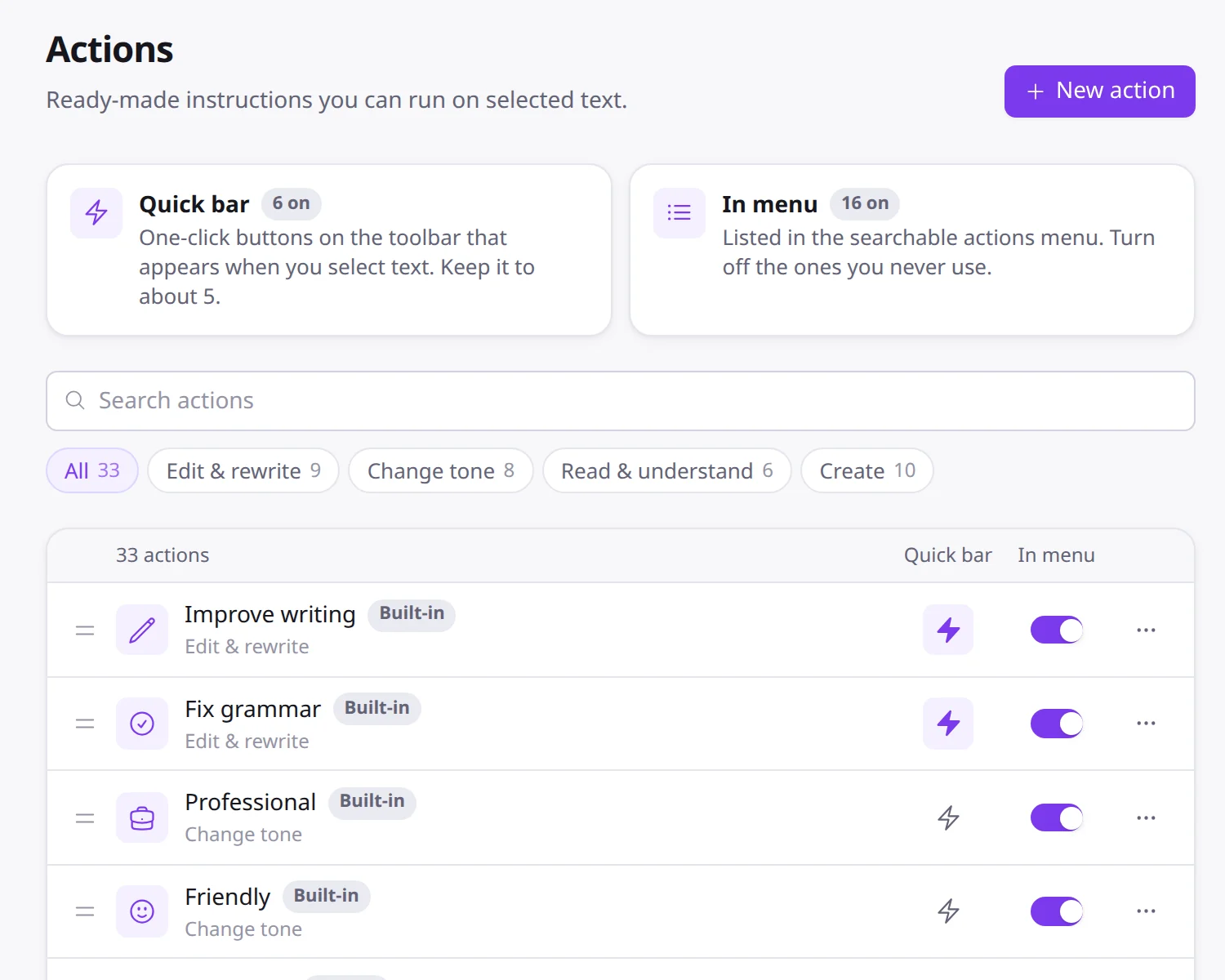
You manage all actions in Settings → Actions. To get there from any page, open the actions menu (Alt+J) and click Edit actions.
Create an action
- In Settings → Actions, click New action.
- Fill in the form:
- Name and icon. The name shows in the menu and on the quick bar, and can be up to 30 characters. Click the icon button next to it to pick an icon.
- Instruction. What you want the AI to do, in up to 1,000 characters. It must contain
${input}where the selected text goes. The Insert buttons add${input}or${lang}at the cursor. - Longest answer (optional). A limit on the answer's length in tokens (about ¾ of a word each), from 1 to 128,000. Leave it empty for the default.
- Check the Preview. It shows your instruction filled in with sample text and your answer language.
- Click Create action.
The new action is on right away. It's listed in the actions menu under My actions, and in the side panel's / list.
Placeholders
| Placeholder | Replaced with |
|---|---|
${input} | The text you selected. Every action needs it. |
${lang} | Your answer language, from Settings → General → Answer language. |
For example:
Write a short, polite reply to the message below, in ${lang}.
Output only the reply, without quotes.
"""${input}"""
Quick bar or menu
Each row in Settings → Actions has two controls:
- Quick bar (the lightning bolt): adds the action to the toolbar that appears when you select text.
- In menu (the switch): lists the action in the actions menu and in the side panel.
Adding an action to the quick bar also turns it on in the menu. Turning it off in the menu also takes it off the quick bar.
The quick bar shows up to four actions, in this order:
- In text boxes: Edit & rewrite and Change tone actions first, then Read & understand, then your own actions, then Create.
- On page text: Read & understand actions first, then your own actions, then Create. Edit & rewrite and Change tone actions don't show here.
So if an action you added to the quick bar doesn't show up in a text box, take one of the actions before it off the quick bar.
Edit, copy, reorder or delete
Click … at the end of a row:
- For your own actions: Edit, Duplicate, Move up, Move down and Delete.
- For built-in actions: View prompt, Duplicate as custom, Move up and Move down. Built-in actions can't be edited. To change one, duplicate it and edit the copy.
You can also drag rows by their handle to change the order. Clear the search first. Within each group, the menu and the quick bar follow this order.
Use the search box and the filters (All, Edit & rewrite, Change tone, Read & understand, Create, My actions) to find an action.
How many you can add
| Plan | Your own actions |
|---|---|
| Free | Up to 5 |
| Lifetime Standard, Lifetime Premium or a token pack | Unlimited |
Duplicates count as your own actions. When you reach the limit, New action is turned off and a note links to the plans. Delete an action to make room. See pricing for the plans.
Chrome limits how much an extension can store in its synced storage. If saving fails with "Not enough sync storage left", shorten or delete an action.
Reset
Reset to defaults, under the list, puts the built-in actions back to their default order and switches. Your own actions are kept.
To delete your own actions together with everything else, use Remove all AskAI data in Settings → General.
Writing good instructions
- Say exactly what you want. "Rewrite to be more concise and keep a professional tone" works better than "make this better".
- Mark where the text starts and ends. Put
${input}between triple quotes, so the AI can tell your instruction from your text. - Say what to output. "Output only the rewritten text, without quotes." That way Replace puts in exactly what you need.
- Say which language. For rewrites, "Respond in the same language as the text". For answers, use
${lang}. - Try it on a few different texts and adjust it until the results are right.
Examples
Code review:
Review this code for bugs, security issues and performance problems.
Give your feedback as a numbered list.
"""${input}"""
Brand voice:
Rewrite the text below in our brand voice: friendly, professional and slightly playful.
Keep the meaning. Output only the rewritten text, in the same language as the original.
"""${input}"""
Email reply:
Draft a helpful, professional reply to this email in ${lang}.
Output only the reply.
"""${input}"""