Side panel chat
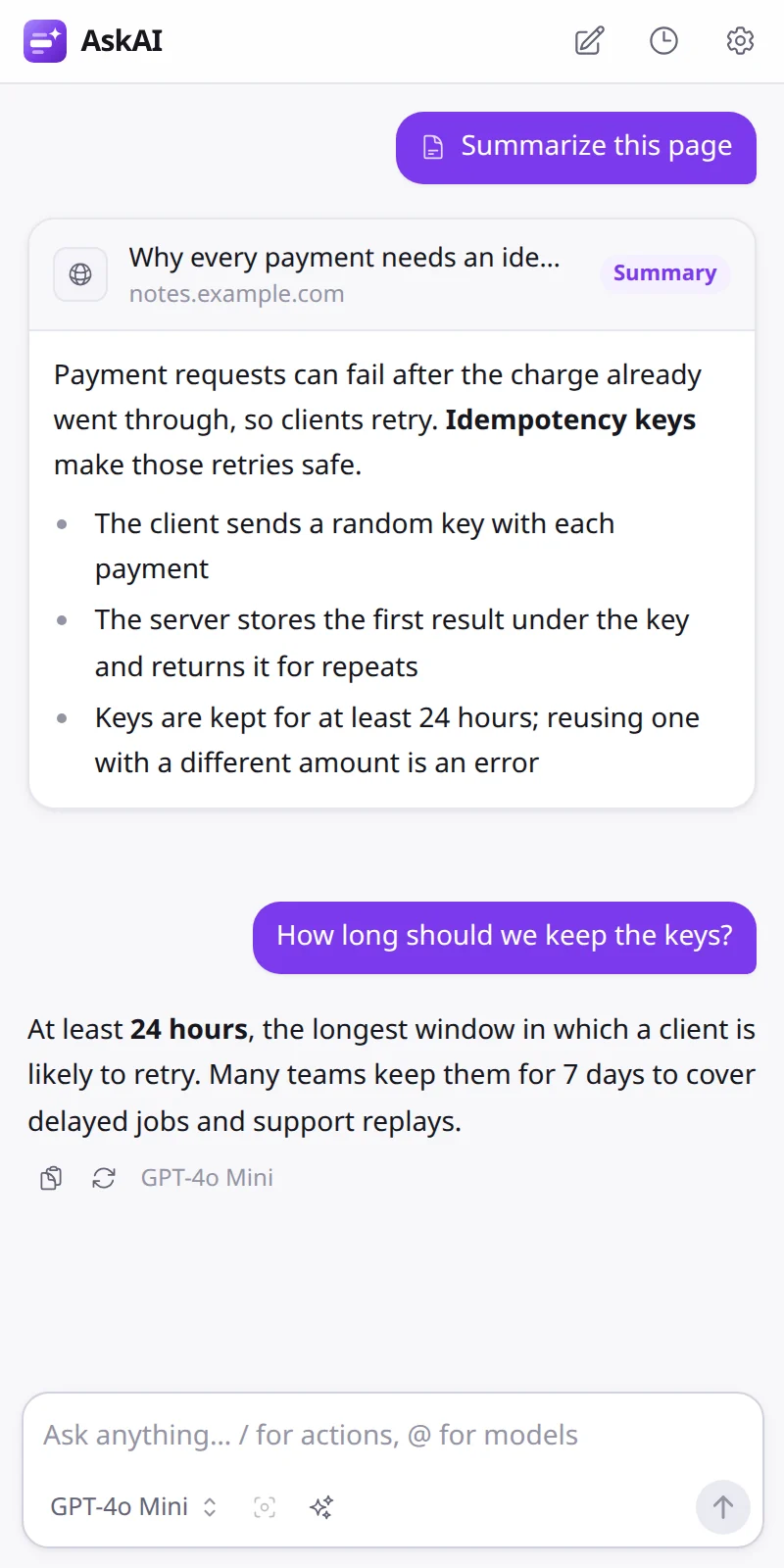
The side panel is a chat with AI that stays open next to the page you're reading. It knows what you select on the page, can summarize the page, and can take screenshots.
Open the side panel
- In the AskAI popup, click Open chat.
- On the AskAI tab at the right edge of a page, choose Open chat.
- In the actions menu (Alt+J), choose Open AskAI chat.
- Summarize page opens it too, with the summary in it.
The chat needs AI access: sign in, or use your own API keys.
Start a chat
A new chat suggests a few things to do:
- Summarize this page
- Ask about part of the screen
- If you've selected text on the page: Explain the selected text and Translate the selection (into your answer language)
- Otherwise: Use an action
Or type a message and press Enter to send it. Shift+Enter starts a new line.
When text is selected on the page, it appears in the message box, with buttons for your quick bar actions. Your message is then about that text. Click × on it to leave it out.
The panel answers one message at a time. Stop ends the current answer. Each answer has Copy and Retry buttons and shows which model wrote it.
Run an action with /
Type / at the start of the message box, or click the actions button under it. Your actions are listed, grouped like the actions menu, and you can type to filter them. Use ↑ and ↓ to move, Enter or Tab to pick, and Esc to close.
After you pick an action, press Enter to run it on the selected text, or type or paste the text you want it to use.
Manage actions at the top of the list opens Settings → Actions.
Switch models with @
Type @ to switch models, or use the model picker under the message box. A photo icon marks the models that can read images.
The panel starts with your default model and remembers the one you pick. With your own API keys, models from providers without a key can't be picked.
Ask about a screenshot
Click the screenshot button under the message box (Ask about part of the screen). Drag over an area of the page, and the picture is attached to your next message. Ask about it, or send it without text to ask what's in it.
If the model you picked can't read images, AskAI uses your Model for screenshots from Settings → AI & models for that message. Screenshot questions are part of Lifetime Premium and token packs.
History
- New chat (the pencil icon at the top) starts a fresh chat.
- History (the clock icon) lists your saved chats. Search them, open one to continue it, or delete one. Clear all deletes every saved chat after you confirm.
AskAI saves up to 50 chats, in this browser only. They aren't copied to your other computers. If you close the panel and open it again in the same browser session, the open chat is still there.
The gear icon at the top opens the settings.